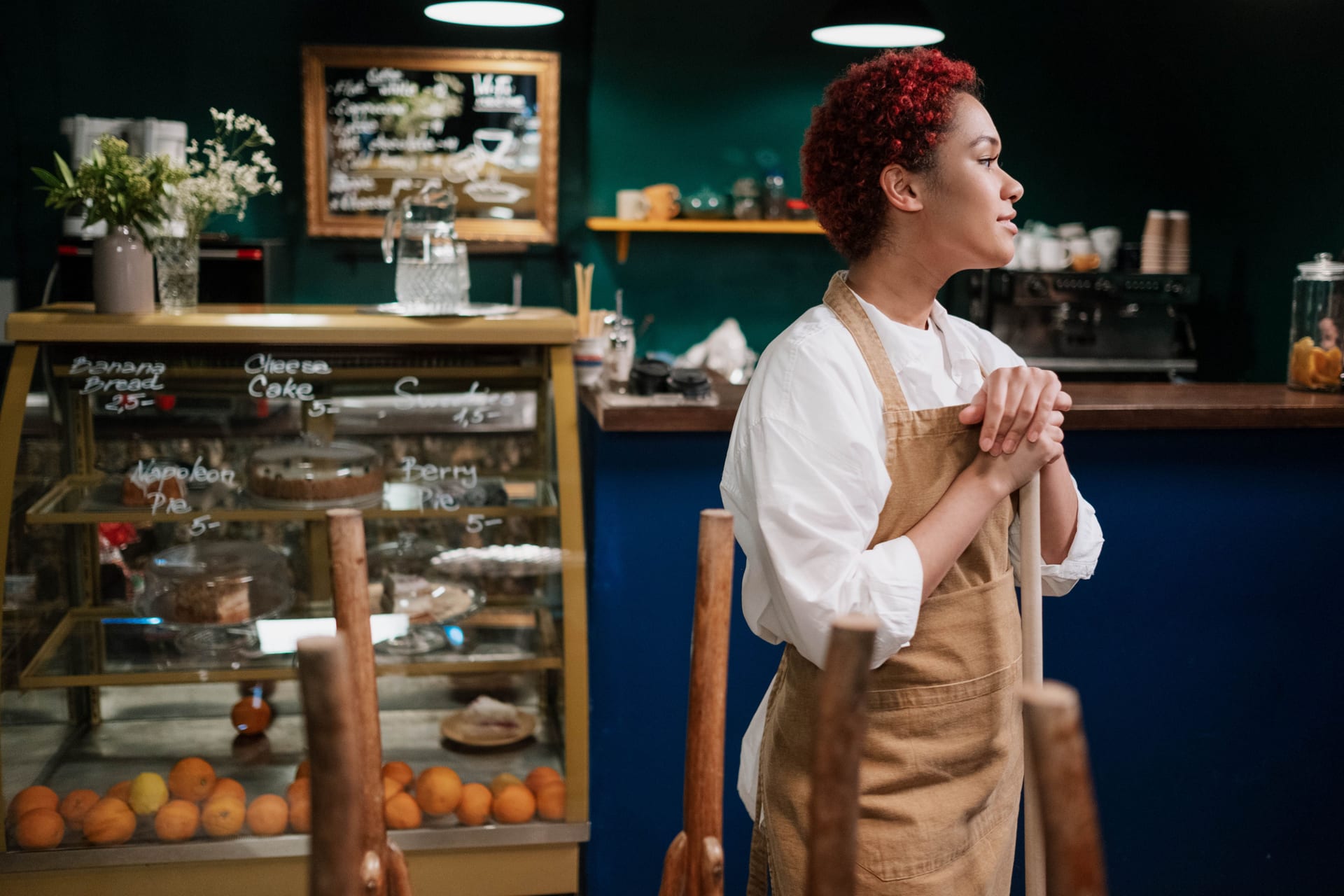
Box to first coffee in ten minutes.
No installer, no migration project, no week of training. Photograph your menu, pair the terminal you already own, pin the iPad, and you're trading. Here's the whole thing, start to finish.
Brulee is the iPad till for your shop or café. You ring up sales on it, take orders online from it, and it quietly keeps your numbers and your team in order behind the scenes.
No tech project. If you can take a photo and tap a screen, you can set it up yourself before the morning rush. Here's exactly how.
Four steps. One iPad you already own.
Each step is built to be done by the owner, on the floor, without a call to support. The clock starts when the iPad comes out of the box.
Photograph your menu
Point the camera at a printed menu or price list. Brulee's AI reads every item and price into a structured catalogue, ready for you to glance over and confirm - no typing a hundred products by hand.
Keep your terminal
Pair the bank EFTPOS terminal you already have through Linkly, Tyro or mx51, then run a test sale. The total lands on the terminal, settles to your own account on your own rate, and the order marks itself paid.
Open your storefront
Your menu is already a commission-free ordering page. Point your own domain at it (or use a free brulee.shop address), print a QR code for the tables, and online orders land on the same till as the counter.
Pin the iPad and go
Lock the iPad to Brulee with single-app mode so the screen can't wander, set your staff PINs, and start ringing sales. You're trading - and Ops, reports and the dashboard are already running underneath.
The ten minutes isn't a slogan. It's the design.
Brulee is offline-first and runs on the hardware you own, so there's nothing to install and nothing to wait for. The AI does the data entry that normally eats an afternoon.
Five things, one login. Here's each in a sentence.
When you finish the four steps above, all of this is already switched on. You don't install any of it separately - turn on what you need, ignore the rest.
The till (POS)
Where you ring up a sale.
Tap the items, take the payment on your card machine, done. Works even if the internet drops.
Your online shop
Customers order from their phone.
Your menu becomes a web page on your own address. Orders drop onto the same till - and no app takes a cut.
Ops (your team)
The daily jobs and safety checks.
Opening lists, fridge-temperature checks, staff training and sign-offs - so the standard holds even when you're not there. More on Ops →
The AI helper
Does the boring paperwork.
Reads your menu from a photo, tallies your GST, and points out what's selling - always showing its working. More on AI →
Your numbers
How the day's going, in real time.
Takings, best sellers and a tax summary that's ready for your BAS - no spreadsheets, no exports.
More than one shop?
Run them all from one place.
See every location side by side, push a price or a policy to all of them at once, and keep each one on the same standard.
Ops runs the team, so you don't have to chase it.
The till takes the money. Ops is the part that makes sure the work behind it actually happens - every shift, every site.
The boring-but-important stuff, handled.
Think of Ops as a checklist, a thermometer and a training folder that never get lost - all on the same iPad as the till.
- Daily jobs. Opening and closing lists pop up for staff, one step at a time, and get ticked off with a timestamp.
- Safety checks. Fridge and freezer temperatures are logged automatically; if one drifts, it raises a flag and keeps the proof.
- Training & sign-offs. New starters are walked through what they need, and you can see who's done what.
- Across every site. Head office sees all locations on one screen, ranked green to red.
Almost certainly, things you already have.
The things everyone asks first.
Do I need to buy new hardware?
Do I have to change my payments?
What happens if the internet drops?
Is setting up my menu hard?
Can it handle my staff and checks?
Can I try it before paying?
Try the demo. Takes 90 seconds.
See the whole flow on real screens, then start free on the iPad you already own.